

Handy Backup might’ve garnered an extra star had it been entirely glitch-free and a bit easier to learn. I still say “take a look” as the file backup and sync are top-notch.
Price When Reviewed
This value will show the geolocated pricing text for product undefined
Best Pricing Today
$89
Handy Backup Pro is clean, efficient, and easy to use — once you figure it out. In its Professional version it’s also one of the most versatile backup software suites that I’m aware of — when it works as hoped. But there are bugs and foibles in 8.7 that I thought would’ve been ironed out in the 18 months since I last reviewed it.
Read on to learn more, and then see our roundup of the best Windows backup software for comparison.
Basically, Handy Backup is an amiable-looking utility that can perform file backup, file sync, as well as disk imaging. That’s definitely upper-tier when it comes to capabilities. But there are some foibles which I’ll discuss below.
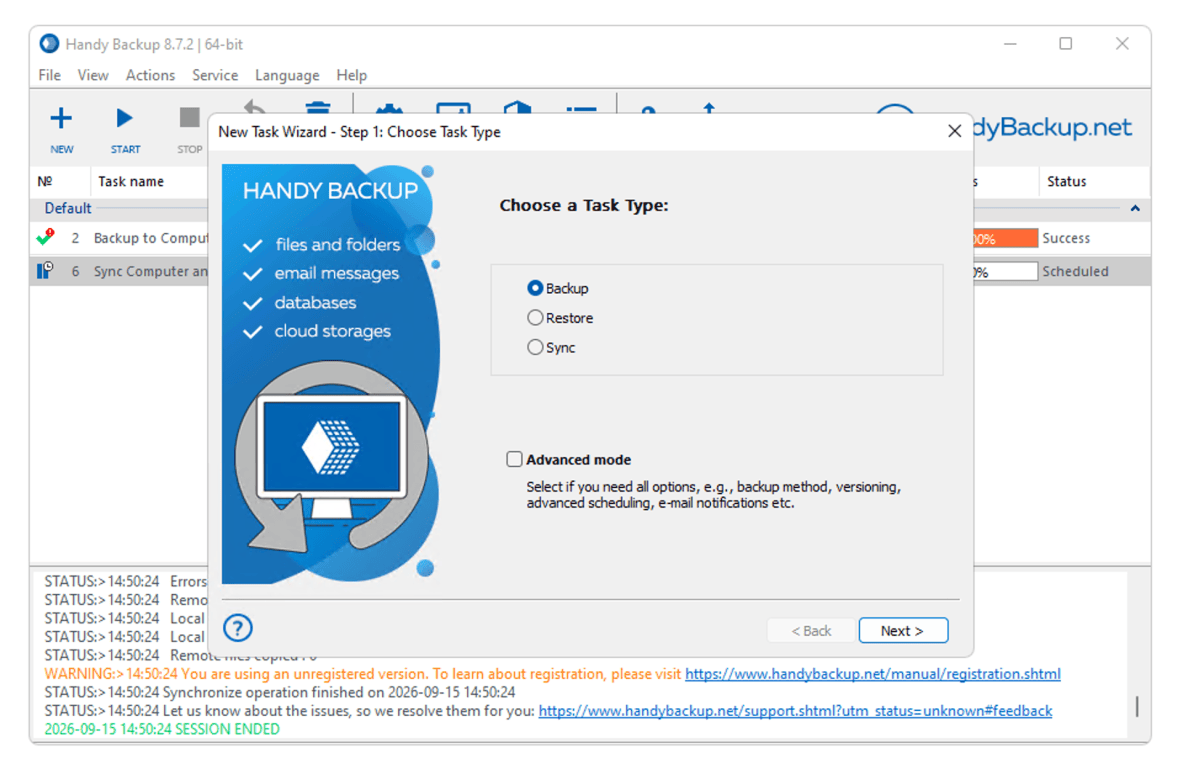
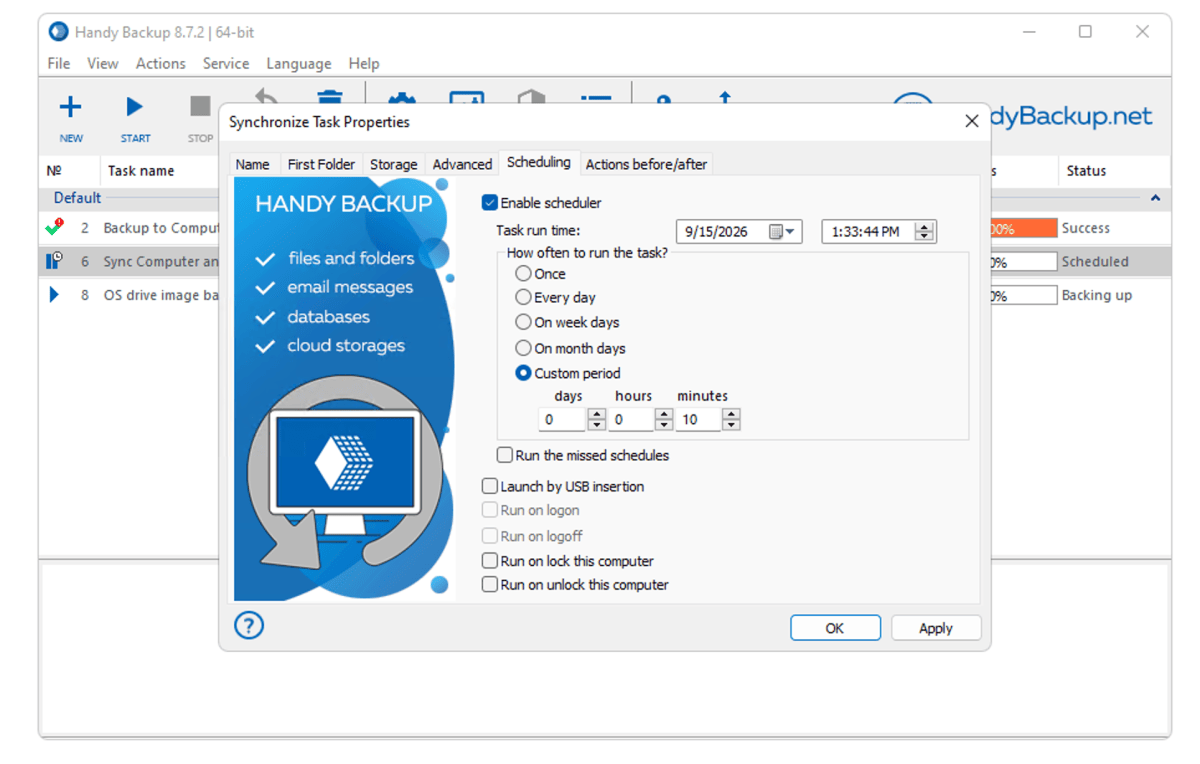
Most of the options you find in other programs are present: restore, compression, encryption (256-bit AES is max), scheduling as granular as a minute (under “custom”), actions/programs that may be executed before and after backups, and even upon inserting a drive.
Handy Backup’s best trick, in my book, is supporting online storage services as both sources and destinations in a backup job. Many backup programs only let you upload data to a service and restore it. I was able to sync a folder from Dropbox to OneDrive with ease. Sweet.
Other supported online storage services include Amazon S3, S3 compatibles, Google Drive (local only), OneDrive for Business, Dropbox for Business, Yandex Disk, Mail.ru Hotbox and Icebox, VK Cloud, Backblaze, and Box. 4Shared is also supported, but for some reason is under the “Sources/Other” rather than “Sources/Cloud” heading.
Handy Backup also supports network locations, WebDAV, and FTP/FTPS/SFTP. Basically, if you can store data on it, Handy Backup supports it.
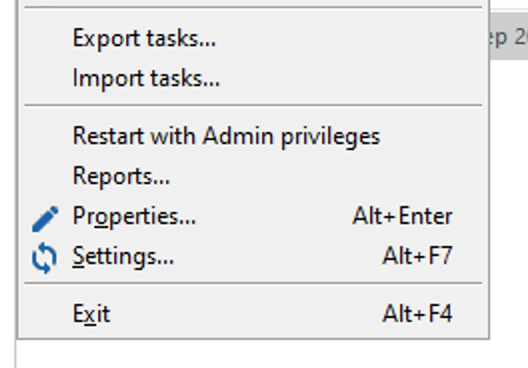
First off, Handy Backup must be run as Administrator for imaging to function correctly, but isn’t installed as such. To enable admin privileges permanently, right-click on the Handy Backup desktop icon, select Properties, Open the file location, right-click on HandyBackup8.exe, and on the Compatibility tab, check the “Run this program as administrator” box. Simply checking this option on the desktop icon did not work for me.
Why Handy still hasn’t fixed this part of the installation is a mystery; however, there is a “Restart with Admin privileges” menu option so they’re obviously aware of the issue.
Then there’s the imaging function. With no option to exclude empty sectors, image files are far larger (close to the entire capacity of the disk or partition) than with other imaging programs, which do offer that option and almost always default to it.
There are also items in odd places. Instead of selecting an image backup, you start defining a backup, then select Disk Clone (one of the functions that requires administrative access) or System Recovery (a system recovery image) from the source list, then either Disk Image or System Recovery (a system recovery image).
Note that the company fixed the System Recovery plugin since my last look. Good job.
Handy Backup’s best trick is supporting online storage services as both sources and destinations in a backup job
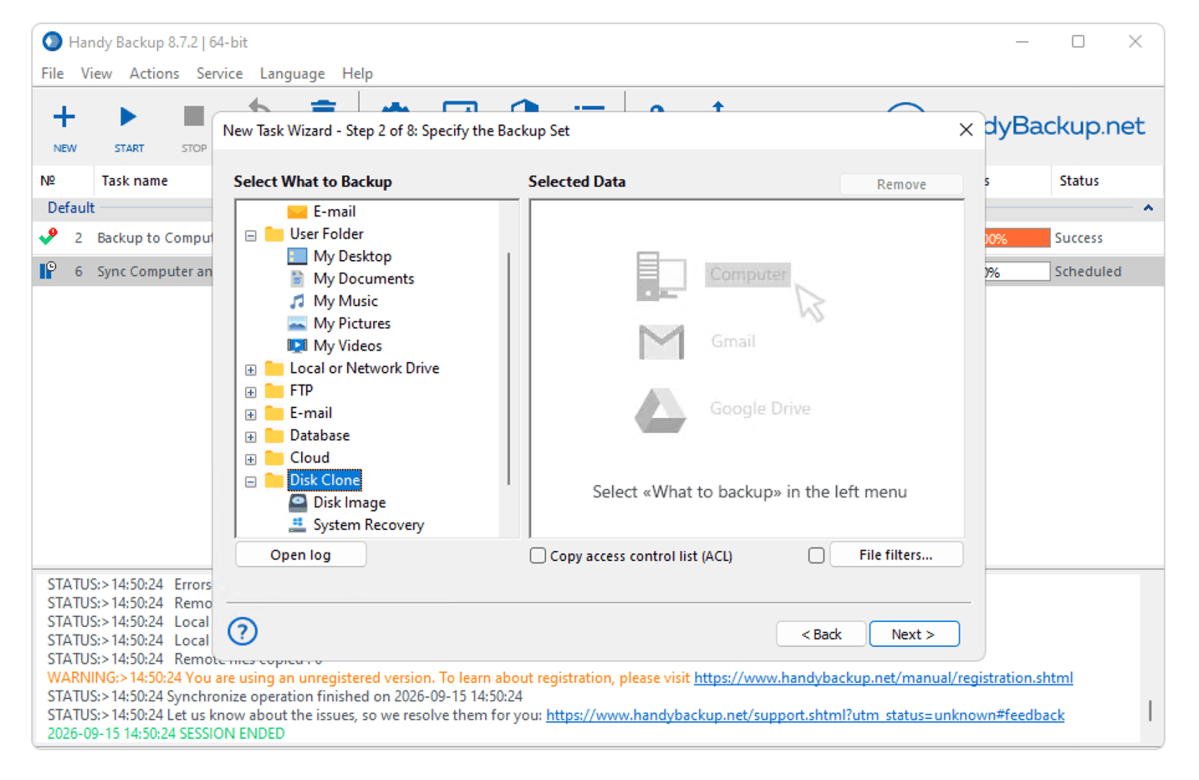
Once you’ve selected an imaging option, you’re presented with a list of local disks and partitions. The logical drive letters are a bit hard to spot. Colons as in C: instead of “Drive C,” perhaps?
Make sure you drill down a level to select what you want, drive image (entire drive) or partitions. If you simply select the drive from the top level, the program will make images of both the entire drive and the individual the partitions.
If you choose Disk Image, it’s the same thing as a System Recovery image. To be blunt, it all works once you know what’s going on, but it could be a heck of a lot more obvious and a lot less user error-prone.
Each job in Handy Backup is handled by a plugin. Fine, but as you can see above, everything is forced into that mold. Imaging should be a function, not a “source” for a backup.
Handy Backup is easy to use, but hardly intuitive in every aspect.
Nicely, Handy Backup offers a disaster recovery disk (see the image below); however, the Create Recovery Drive command in the File Menu simply directs you to instructions on the company’s website to download an .iso version of the recovery disc. You can use Rufus or another boot disc creator to create the boot drive.
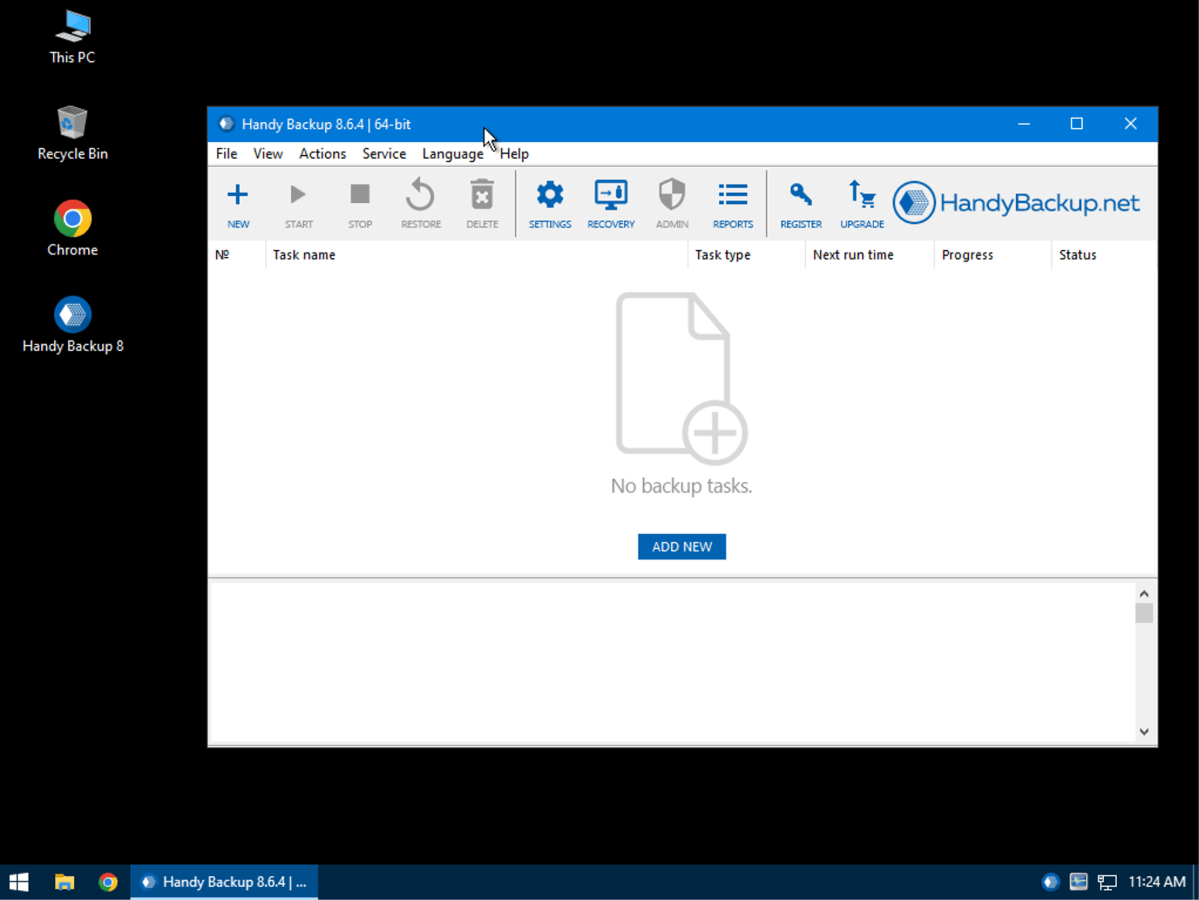
Handy Backup has much the aspect of a program whose interface was designed by programmers. Once you’re acclimated, it’s more than doable, but there’s far more acclimating than is ideal.
Once upon a time there was a free version of Handy Backup. No more. There is, however, a 30-day trial available. Beyond that, the standard, file-only version is $39; the professional version that I reviewed which adds the imaging functions is $89; the small business version that backs up various business software and databases is $249; and there is a server version for $487 that adds Linux and remote management functionality. See the the complete feature chart to compare options.
In terms of value, Handy Backup is facing a lot of competition in the form of Acronis True Image, Easeus ToDo Backup, Aomei Backupper, and others available at similar or lower price points. Not to mention the free Macrium Reflect and Windows File History.
With files, Handy Backup was very quick. Imaging? Well, it’s as fast but as anything in terms of MBps, but it’s also backing up the entire disk. My operating system on the software testbed contains around 300MB worth of data, but being a 1.8TB drive, it took Handy Backup a lot longer than most programs to back it up.
The program also did not warn me that there wasn’t enough space on the destination drive when I first set the job in motion. It failed with the error. I had not suspected that the image would include empty sectors as previously discussed.
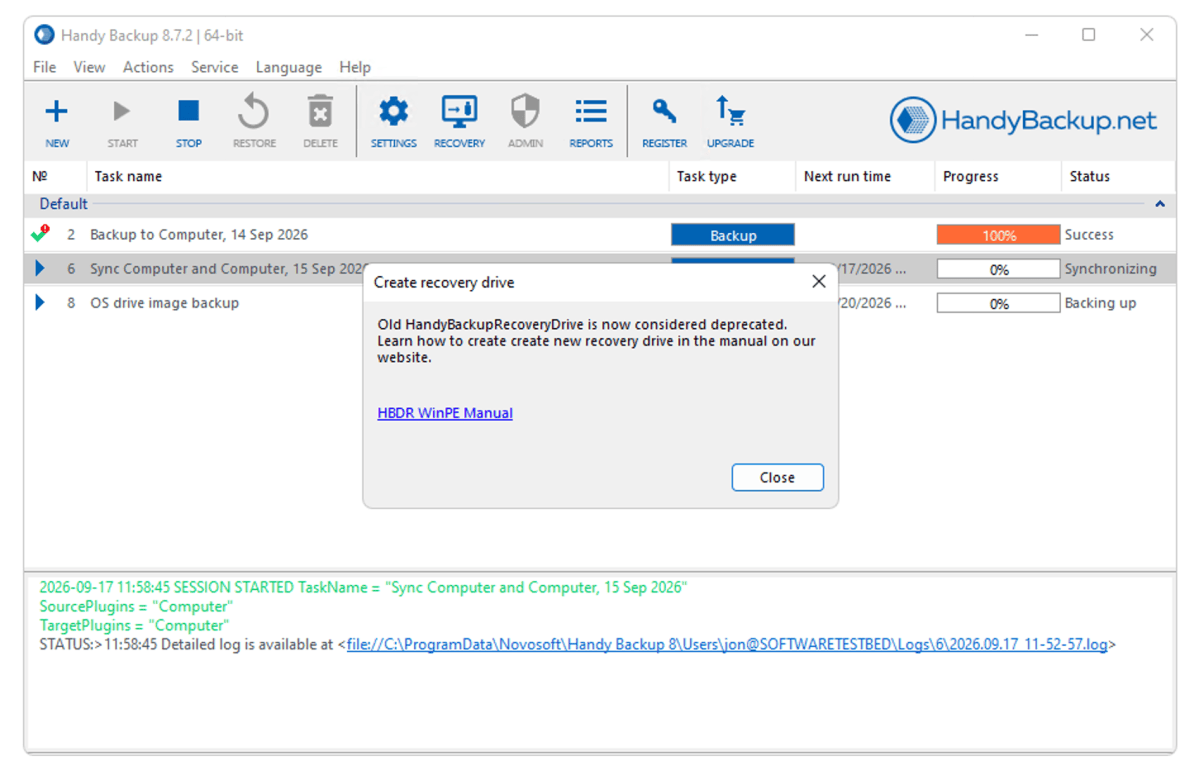
I also found the program frustratingly slow to respond when I wanted to kill operations. While not putting escape checks in a loop can speed operations, it can also result in a lot of time wasted performing operations that the user wants to cancel. I understand this logic during the delicate restore operation, where it must complete or risk data loss, but not during backups where cancelling won’t damage anything.
On that note, the program could deliver a bit more information such as, “You will not be able to access the drive being restored from an image until the process is complete.” Instead, it expects you to understand that. Fair enough, but there are users out there who won’t.
The only bug that truly irked me was Handy Backup being denied access to Google Drive, despite my successful login. Other services were fine, but that’s a very, very common online storage repository.
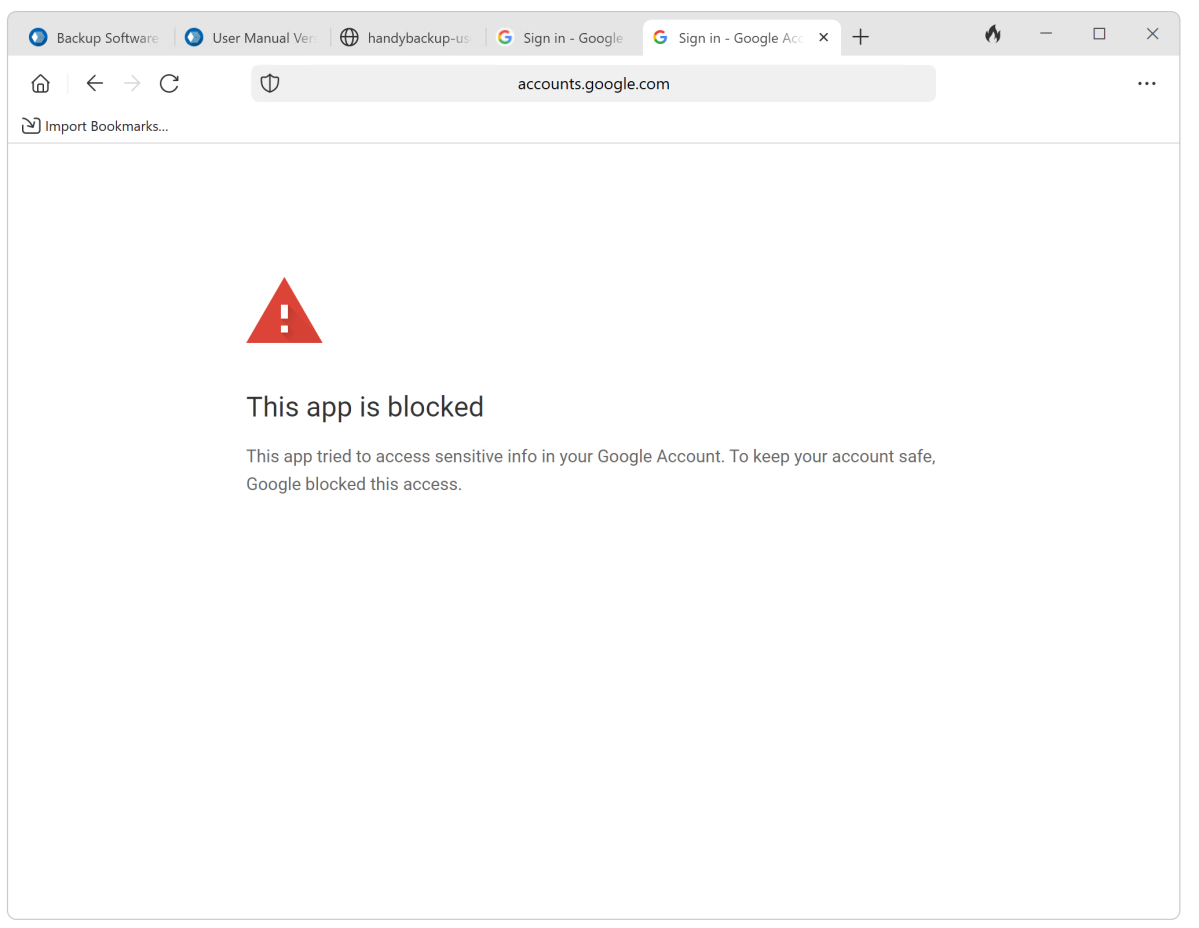
This bug remains in version 8.7, despite my having described it in such vivid detail a year and a half ago. Handy says it’s dancing with Google over it and eventually it should be fixed. Here’s hoping.
Conceptually, I appreciate Handy Backup with its myriad capabilities, plug-in expandability, and top-notch performance. It has fantastic potential, but backup and bullet-proof should be synonymous in my mind. Too many foibles. Fix them — get another star.
My opinion aside, there’s no harm in downloading the trial to see if Handy tickles your fancy — i.e., suits your needs.


